
Ease in and ease out (often called "slow in and slow out") is one of animation's oldest and most foundational principles. It shapes whether a bouncing ball feels alive or robotic, whether a UI dropdown feels snappy or sluggish, and whether a character's walk cycle has weight or floats like it's underwater.
This guide breaks down the real definition, untangles the animator-versus-developer confusion that trips up even working professionals, shows you how to apply easing across tools like Maya, Unity, and CSS, and explains why this one principle can quietly shape your entire animation career.
Key Takeaways
- Disney called it "Slow In and Slow Out," one of its original 12 Basic Principles of Animation.
- Animators define easing by pose; developers define it across the full timeline.
- Correct easing builds weight and believability into any motion, hand-drawn, 3D, or on-screen.
- The physics stays constant everywhere; only the interface changes, from pencil spacing to CSS cubic-bezier curves.
What Is Ease In and Ease Out in Animation?
Ease in and ease out comes straight from Disney's 12 Basic Principles of Animation, where it was originally named "Slow In and Slow Out." The logic is simple physics: nothing in the real world starts or stops instantly. A car doesn't snap from parked to 60 mph. A hand doesn't teleport onto a doorknob. Motion builds up and winds down.
In practical terms:
- Ease-in means decelerating into a pose or keyframe; drawings or frames bunch closer together near the end of the movement
- Ease-out means accelerating away from a pose; frames cluster closer together near the start
Picture a car pulling away from a stoplight. In the first few frames, it barely moves, then it picks up speed rapidly. That's ease-out. Now picture it rolling up to a red light: it's moving fast, then the frames compress as it slows into a stop. That's ease-in.

Easy Ease vs. Easy Ease In vs. Easy Ease Out
This is one of the most common questions students ask, and Adobe's own documentation settles it clearly. In After Effects, Adobe explains that these three commands apply easing differently:
| Command | Shortcut | What it does |
|---|---|---|
| Easy Ease | F9 | Eases both incoming and outgoing speed |
| Easy Ease In | Shift+F9 | Eases speed coming into the selected keyframe only |
| Easy Ease Out | Ctrl+Shift+F9 (Win) / Cmd+Shift+F9 (Mac) | Eases speed coming out of the selected keyframe only |
Easy Ease sets the keyframe's speed to zero with roughly 33% influence on both sides, softening the motion on either end without you touching a single graph handle.
This isn't a new idea dressed up in software. Frank Thomas and Ollie Johnston documented it back in 1981 in The Illusion of Life, describing how animators placed inbetweens close to each extreme pose with only one fleeting drawing near the midpoint.
Frank and Ollie's own site puts it plainly: more drawings near the starting and ending pose, fewer in the fast middle, and that spacing alone is what softens the action.
Ease-In vs Ease-Out: Untangling the Confusion Between Animators and Developers
Here's where things get genuinely confusing, and it's not your fault. Two entirely valid professional traditions use the exact same two words to mean opposite things.
The Animator's Perspective (Pose-Based)
In traditional and character animation, "in" and "out" are anchored to a pose, not the whole clip. Easing "in" happens right before you land on a pose. Easing "out" happens right after you leave one. A single animation might have a dozen eases, one for every pose along the way.
The Developer's Perspective (Timeline-Based)
In CSS and motion design tools, "in" and "out" refer to the entire transition, start to finish. ease-in means the whole animation starts slowly and speeds up. ease-out means it starts fast and slows down at the end. There's no pose involved, just elapsed time.
That's functionally the reverse of what an animator means by the same words.
Why the Terms Feel Reversed and How to Remember Them
Here's an analogy that sticks: imagine a squire riding into a courtyard. He gallops fast, then reins the horse in gently before stopping. That's easing into a pose, an animator's ease-in.
Now picture him leaving in a hurry: standing still, then bolting the moment the gate opens. That's easing out of a pose, an animator's ease-out.
A developer watching those same two moments would flip the labels. The fast-to-slow arrival matches ease-out, since the motion starts fast and slows at the end. The slow-to-fast departure matches ease-in, since it starts slow and speeds up.
| Term | Animator's meaning | Developer's meaning (CSS) |
|---|---|---|
| Ease-in | Slowing into a pose | Slow start to entire animation |
| Ease-out | Accelerating away from a pose | Slow end of entire animation |
If you're moving between traditional animation, VFX, and UI/motion design roles, this matters more than it sounds. Apply the wrong mental model in a CSS file and you'll build a transition that feels backward, even though your instinct was technically correct in Maya.

Why Easing Makes or Breaks Your Animation
Strip easing out of any animation and you get linear motion: constant speed, no acceleration, no deceleration. It looks mechanical because nothing in nature actually moves that way.
Easing is what gives motion weight, believability, and emotional nuance. A character that eases into a sitting pose feels like it has mass, while one that moves at constant velocity looks like it's being dragged on a string.
The perception of speed effect is where this gets interesting for digital products. A dropdown menu or loading spinner using ease-out (fast start, slow finish) feels noticeably more responsive than one with linear or ease-in timing, even at the exact same duration.
Nielsen Norman Group notes that linear motion reads as unnatural and recommends ease-out because the quick start feels immediate while the slower finish gives the eye time to settle on the result. Their guidance suggests 100–500ms for most UI animations:
- Simple toggle feedback: around 100ms
- Larger modal transitions: 200–300ms
Common Easing Mistakes Beginners Make
- Defaulting to linear motion for organic or character-driven movement, which instantly reads as stiff and lifeless
- Applying one easing curve to everything, ignoring that a heavy object and a lightweight one shouldn't move the same way
- Mixing up animator and developer definitions when switching between animation software and code, causing curve mismatches
Applying Ease In and Ease Out Across Animation Tools and Mediums
The principle never changes. The interface for controlling it does, dramatically, depending on your medium.
Traditional & Hand-Drawn Animation
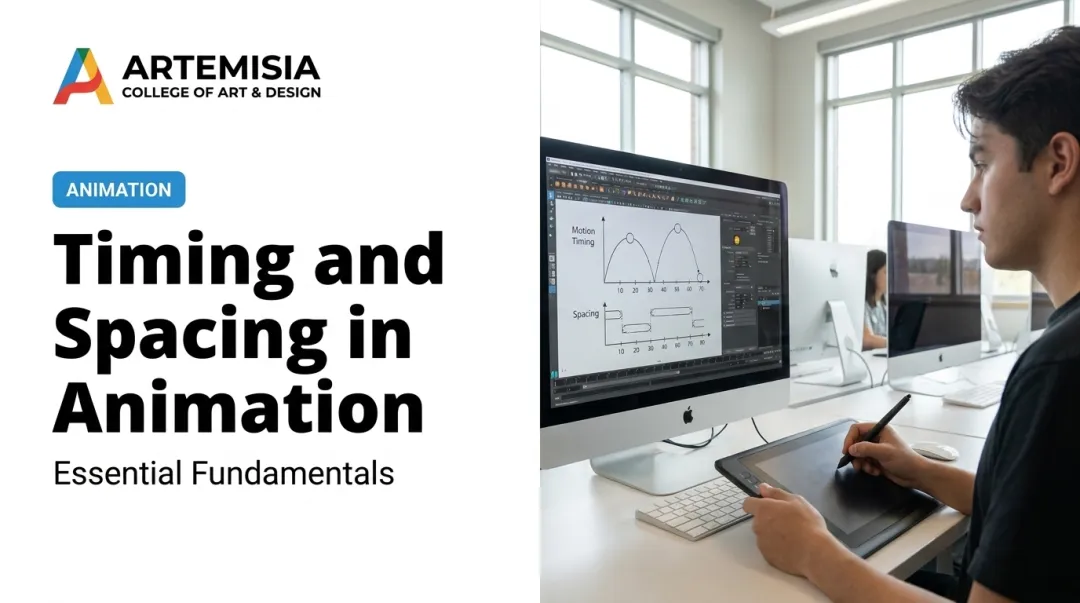
Here, easing is purely about spacing. Animators place more drawings close to each pose and fewer across the fast middle section. No graph, no numbers, just visual judgment on paper or in 2D software like Toon Boom.
3D & Digital Animation Software (Maya, Blender, After Effects)
Digital tools translate spacing into curves. Each program handles this differently:
- Maya's Graph Editor uses tangent handles on animation curves to control how motion enters and exits a keyframe
- Blender's F-Curve editor lets you set easing independently on the left or right side of a keyframe segment
- After Effects offers a one-click Easy Ease shortcut plus a full Speed Graph for manual fine-tuning
Game Engines & Real-Time Animation
Unity's AnimationCurve.EaseInOut function generates easing curves programmatically for character movement and UI transitions. Unreal Engine's Blend Spaces go further, offering Smoothing Types like Linear, Cubic, Ease In/Out, and Spring Damper to control how character locomotion and camera movement blend in real time.
Web, UI & Motion Design (CSS/JS)
CSS handles easing through cubic-bezier functions. The standard keywords map to specific curves: ease-in is cubic-bezier(0.42, 0, 1, 1), ease-out is cubic-bezier(0, 0, 0.58, 1). Designers can also build custom curves for bounce or overshoot effects that traditional software can't replicate as easily.

Turning Animation Fundamentals into a Creative Career
Here's what studios actually screen for in a demo reel: not software fluency, but whether you understand why a movement should ease. Anyone can click "Easy Ease." Recruiters are watching for whether you knew when to use it and why.
That's the gap Artemisia College of Art & Design's Animation & VFX program is built to close. The curriculum starts with sketching, composition, and animation principles on a lightbox, then layers in industry software like Maya, ZBrush, Houdini, and After Effects. The idea is simple: theory first, tools second, so the fundamentals actually stick.
Once students are portfolio-ready, Artemisia's Placement Cell takes over with:
- One-on-one portfolio finalisation and CV support
- Mock interview sessions and mentoring from industry-experienced coordinators
- Company mapping based on individual specialisation, whether that's 3D animation, concept art, or VFX
That placement network extends well beyond mentoring, reaching global names such as Rockstar Games, Ubisoft, Electronic Arts, and Pixar, alongside Indian studios like Zebu Animation and Art Attack Animation.
Recent Animation & VFX graduates have already landed real roles: a 2D Generalist position at Art Attack Animation and a 3D Animator role at Studio 56. That's proof that a strong grip on fundamentals like easing translates into real placements.
One Principle Among Twelve
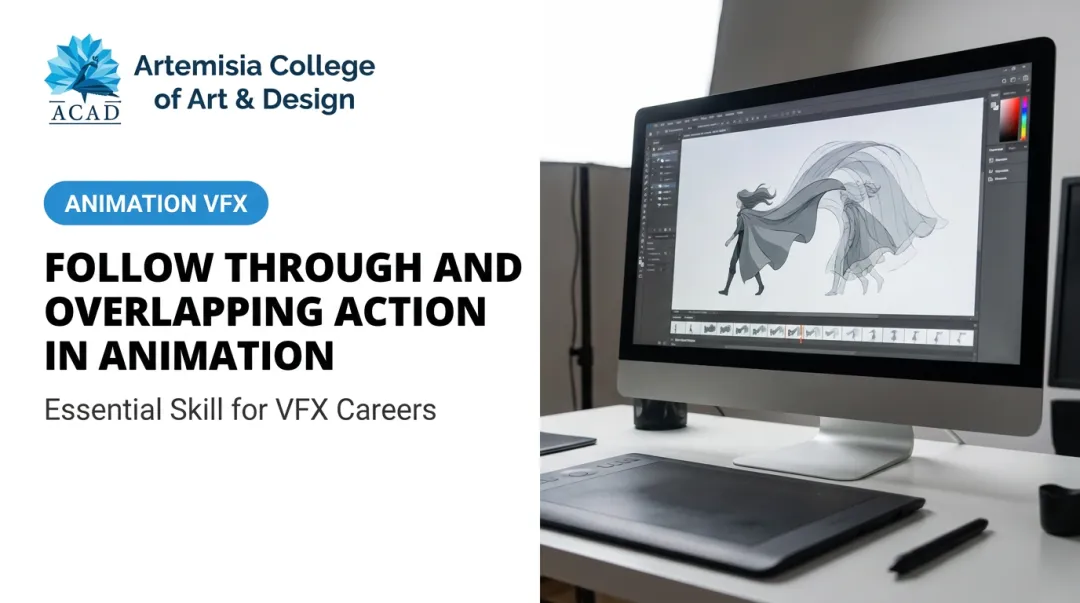
Ease in and ease out only reads correctly when the principles around it are also working. Isolate it and you get smooth motion with no weight; combine it properly and motion starts to feel governed by physics.
Learn the Principles in Combination at Artemisia College of Art & Design
Easing only does its job alongside the other principles, which is why learning it in isolation rarely sticks. It needs spacing charts, a bouncing ball, and then a character who has a reason to slow down. At Artemisia College of Art & Design (ACAD), the twelve principles are taught as a connected set of practical exercises, first on paper and then in software, so students feel how they combine.
Courses Offered:
- Certificate in 2D & 3D Animation
- Diploma in 2D 3D Animation & VFX
- B.Design in Animation & VFX
Here's what sets ACAD apart:
- Principles Taught Together: Easing is practised alongside timing, spacing and anticipation rather than as a standalone topic.
- Spacing Worked by Hand: First-year animation runs on a lightbox, where spacing is drawn rather than set by a curve editor, which is the clearest way to understand it.
- Then the Same Idea in Software: Students move into Maya and the After Effects stack, where the hand-drawn understanding translates into curve work.
- Advance Principles in Sequence: Morphing, lip sync, pose-to-pose and inbetweening follow, each requiring easing decisions in a different context.
- Learning From Working Animators: Around 90% of the faculty come from working industry, with five to thirty-five years of practice behind them.
- Live Project Application: ACAD Studios, the college's own animation and game production studio, takes students on as paid interns from the fourth semester.
Easing is one principle among twelve and only reads correctly in combination with the rest. ACAD's animation courses teach them as a set and give students the repetition needed for the judgement to become automatic.
Frequently Asked Questions
What does ease in and ease out mean in animation?
Ease-in is deceleration into a pose, while ease-out is acceleration away from one. Together they form Disney's "Slow In and Slow Out" principle, one of the original 12 Basic Principles of Animation.
What is the difference between Easy Ease and Easy Ease In in animation?
Easy Ease smooths motion on both sides of a keyframe. Easy Ease In only smooths the incoming side, leaving the outgoing side at its original speed.
Is ease-in or ease-out better for UI animations?
Ease-out is the preferred choice for elements entering the screen. The fast start feels immediate and responsive, while the slow finish lets the eye settle on the result.
How do you add ease in and ease out in After Effects or CSS?
In After Effects, select a keyframe and press F9 for Easy Ease. In CSS, use the animation-timing-function or transition-timing-function property with a keyword like ease-in or a custom cubic-bezier value.
Why do animators and developers define ease-in and ease-out differently?
Animators reference a specific pose, easing into or out of it. Developers reference the entire animation timeline, describing whether the whole transition starts or ends slowly. Both are correct within their own context.
Which of Disney's 12 principles is ease in and ease out part of?
It corresponds directly to "Slow In and Slow Out," one of the original 12 Basic Principles of Animation documented by Frank Thomas and Ollie Johnston.